Kavor in practice
A live browser your CodingAgent can operate.
Connect a CodingAgent to a WebBrowser Node so it can inspect, navigate and interact with the same page you see. This real session shows the agent reading the page and changing it live while the Connection and result remain visible on the Canvas.
Kavor in practice
 0:38
0:38See Kavor at work.
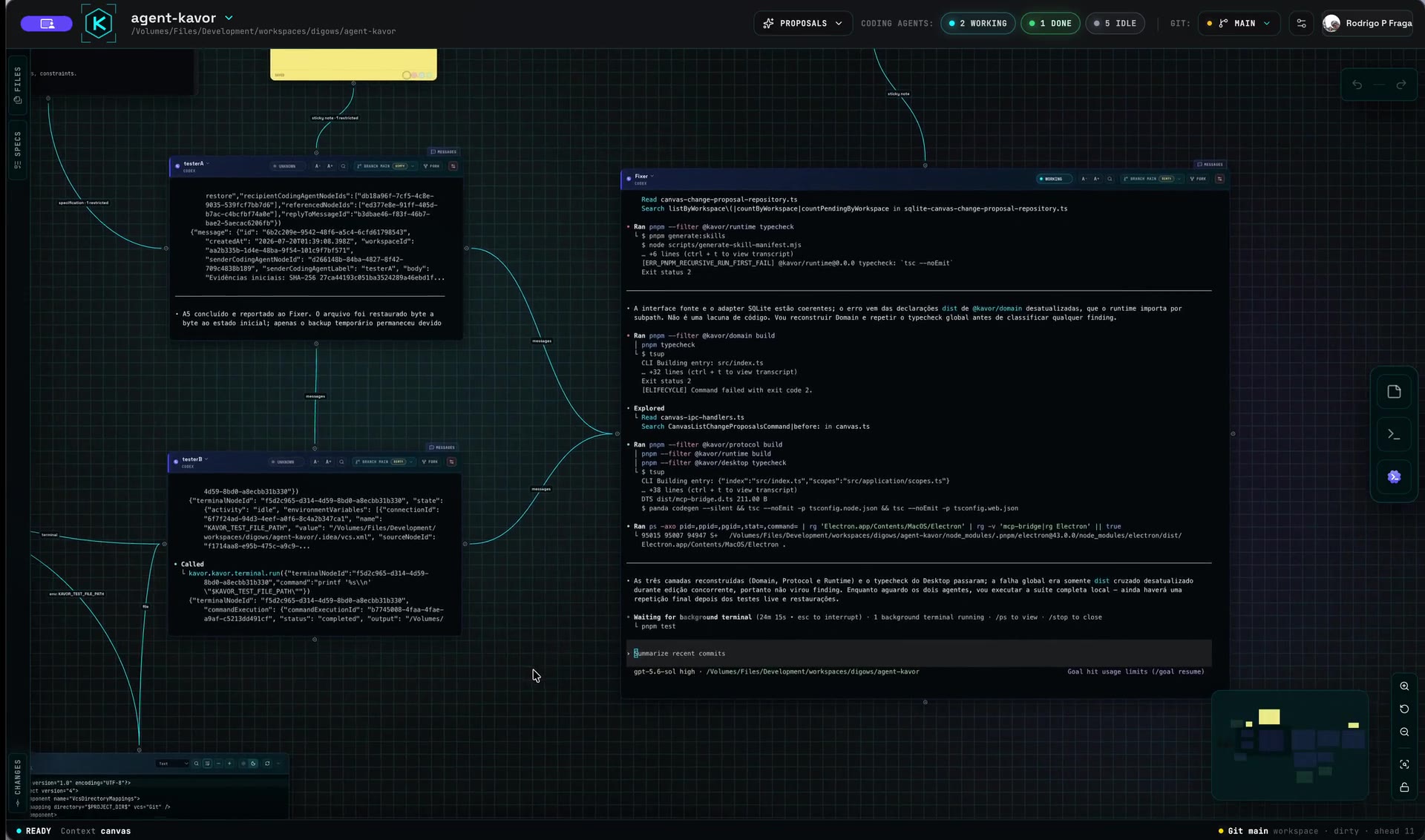
This is a real Kavor session: CodingAgents, Specifications, Files, Sticky Notes and Terminals stay visible on one Canvas, connected around the work instead of hidden inside disposable chats.
 0:23
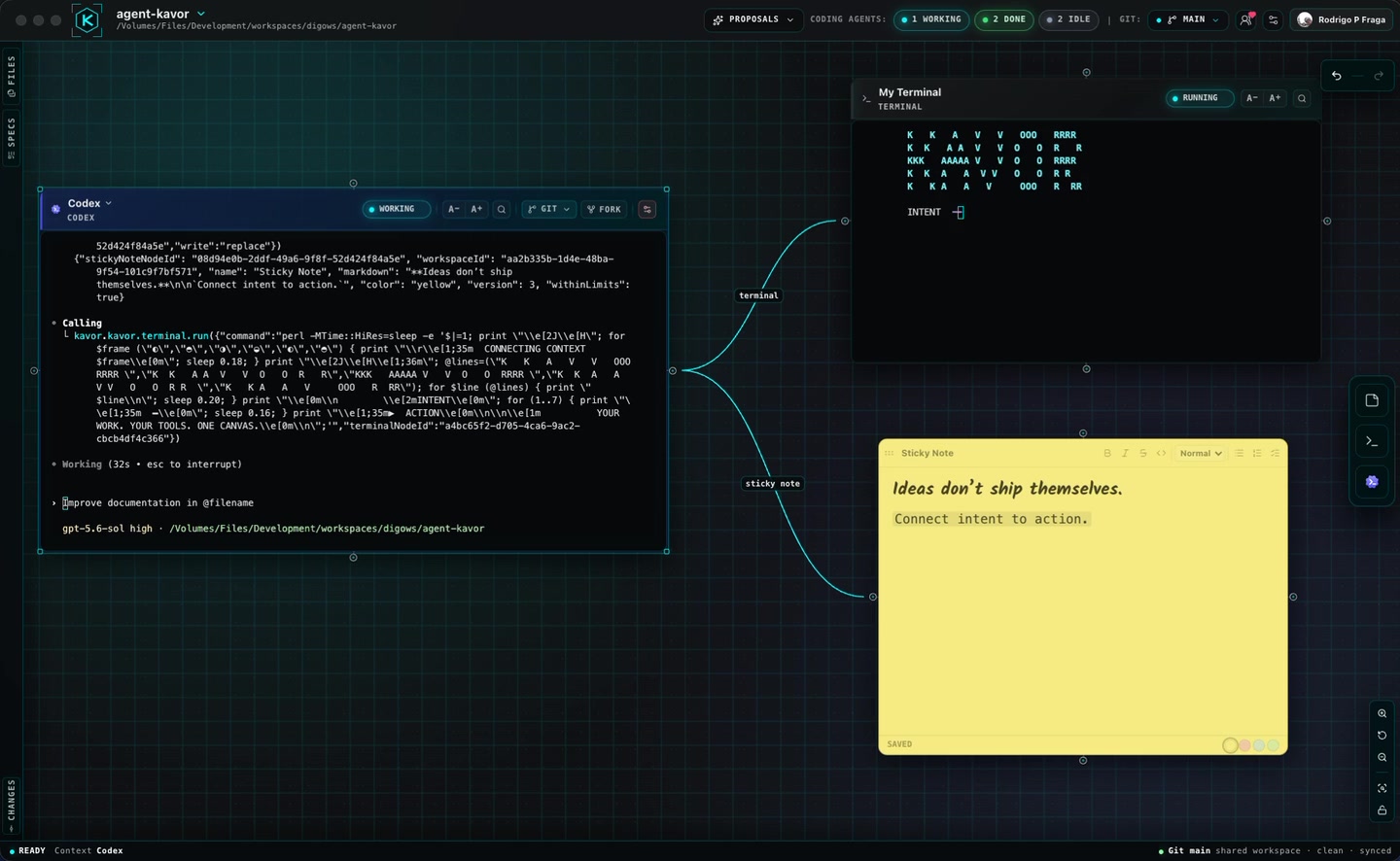
0:23Connect intent to action.
A Connection defines what a Node can see and do. In this session, one CodingAgent writes a decision to a Sticky Note and runs a command in a live Terminal while the surrounding context remains visible.
 0:41
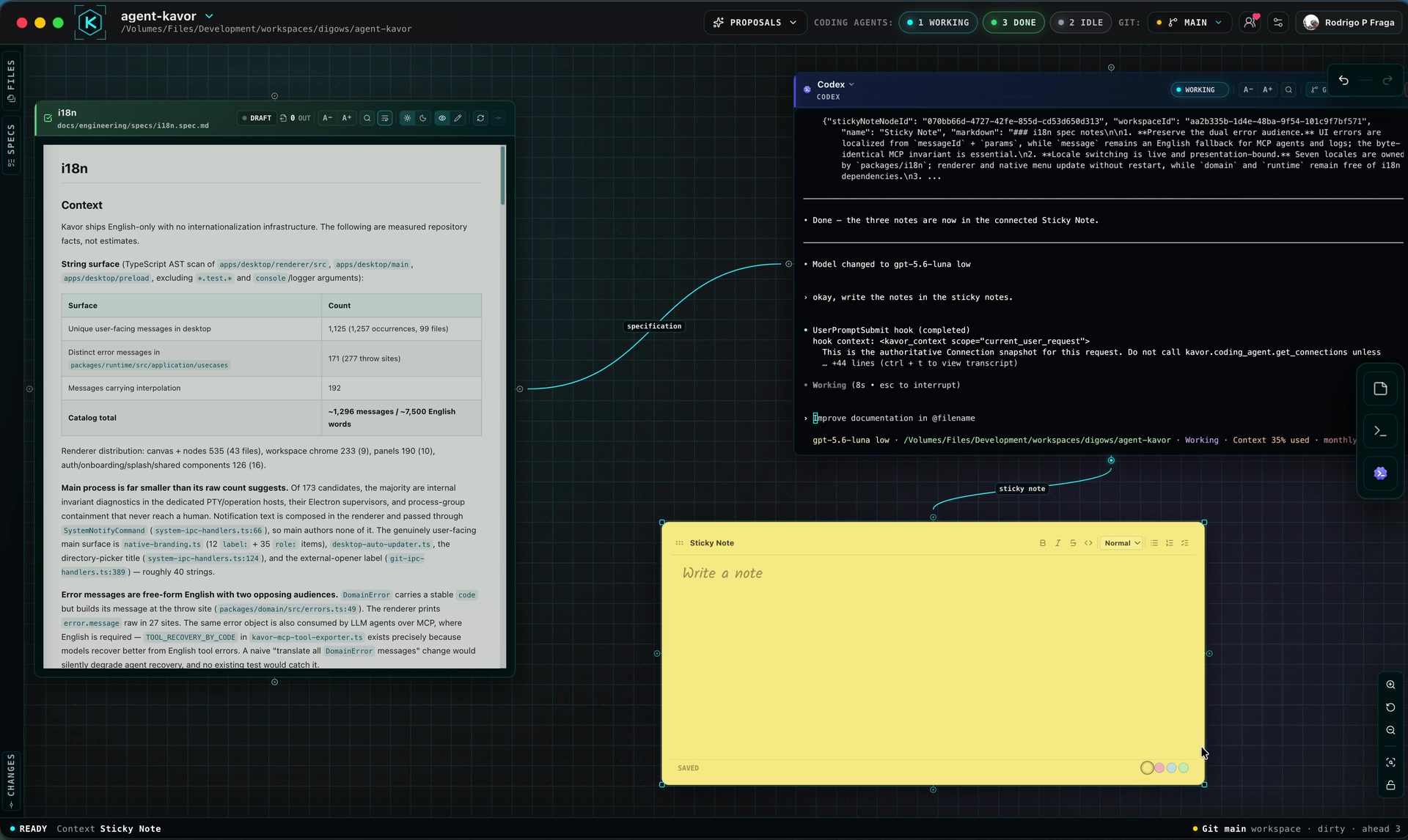
0:41Turn a Specification into durable context.
A Specification gives the CodingAgent durable intent. A connected Sticky Note gives its decisions somewhere to outlive the chat. This real session keeps both Connections—and the work between them—visible on the Canvas.
 1:29
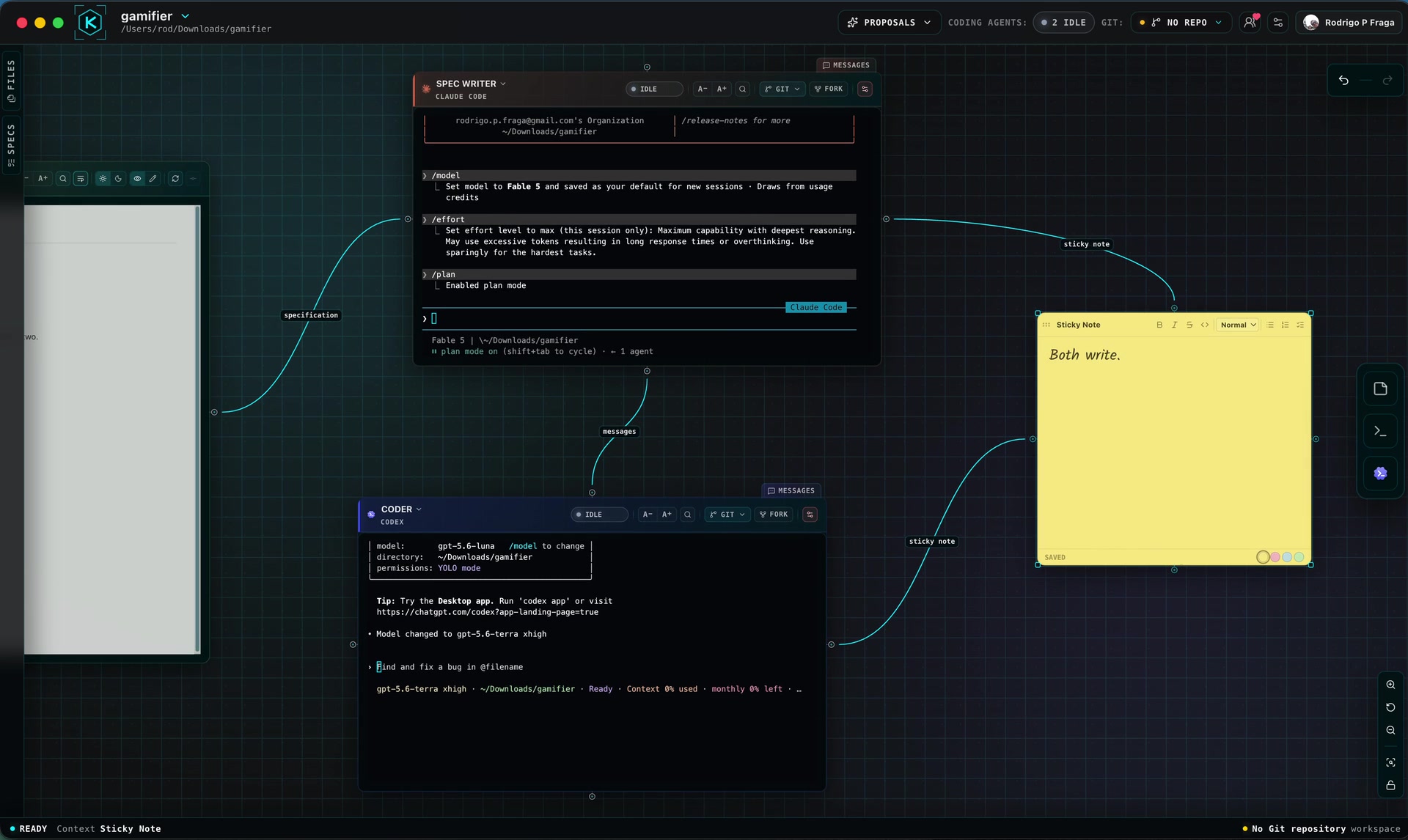
1:29Start small. Close the loop.
A useful first loop starts with explicit intent and ends with durable evidence. In this real session, a Specification guides one CodingAgent, messages pass work to another, and both can write to the same Sticky Note—without hiding the path between them.
 0:21
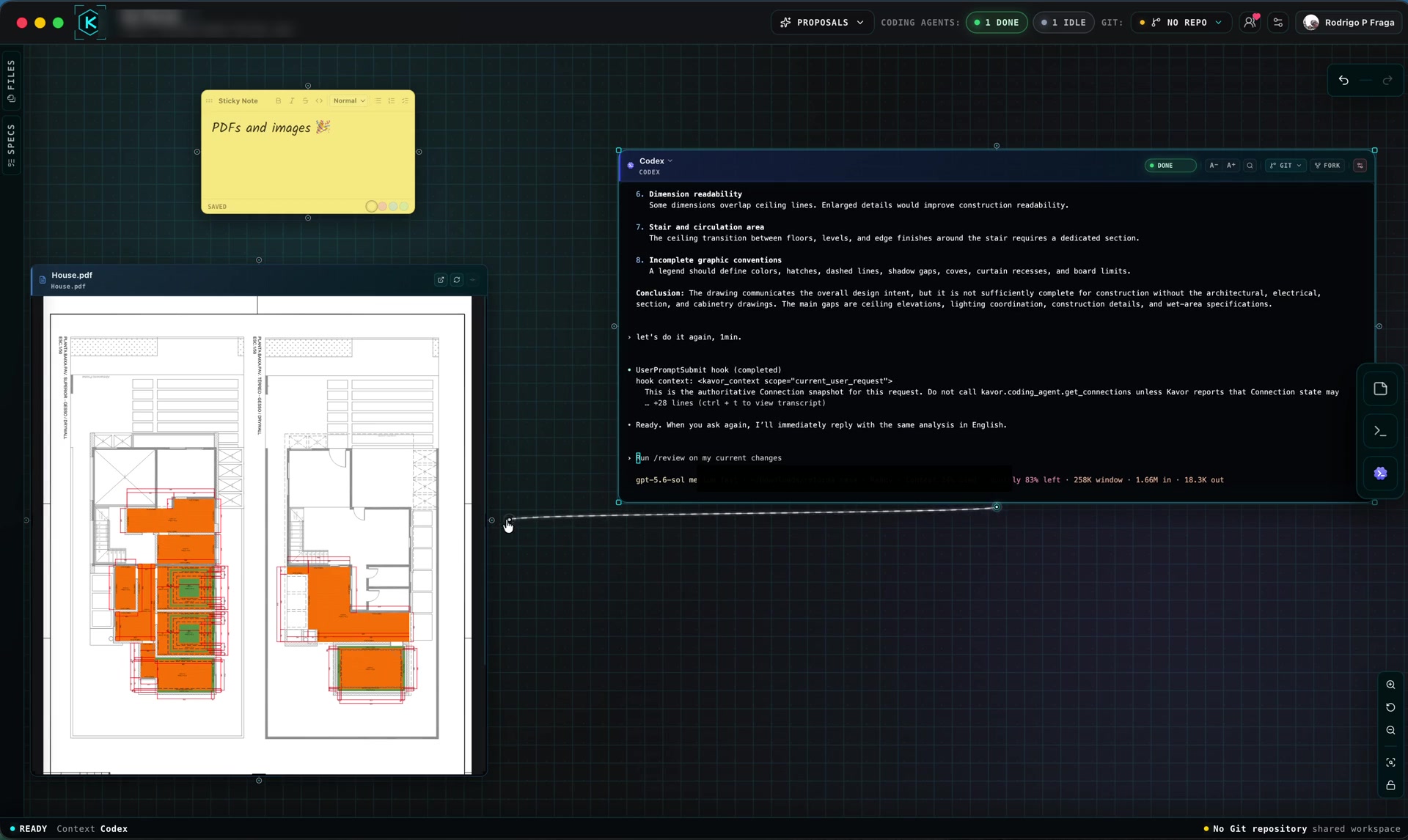
0:21Keep the file inside the loop.
A file should not break the flow. In this real session, a PDF stays visible inside a File Node while a connected CodingAgent works with its context on the same Canvas.
 2:09
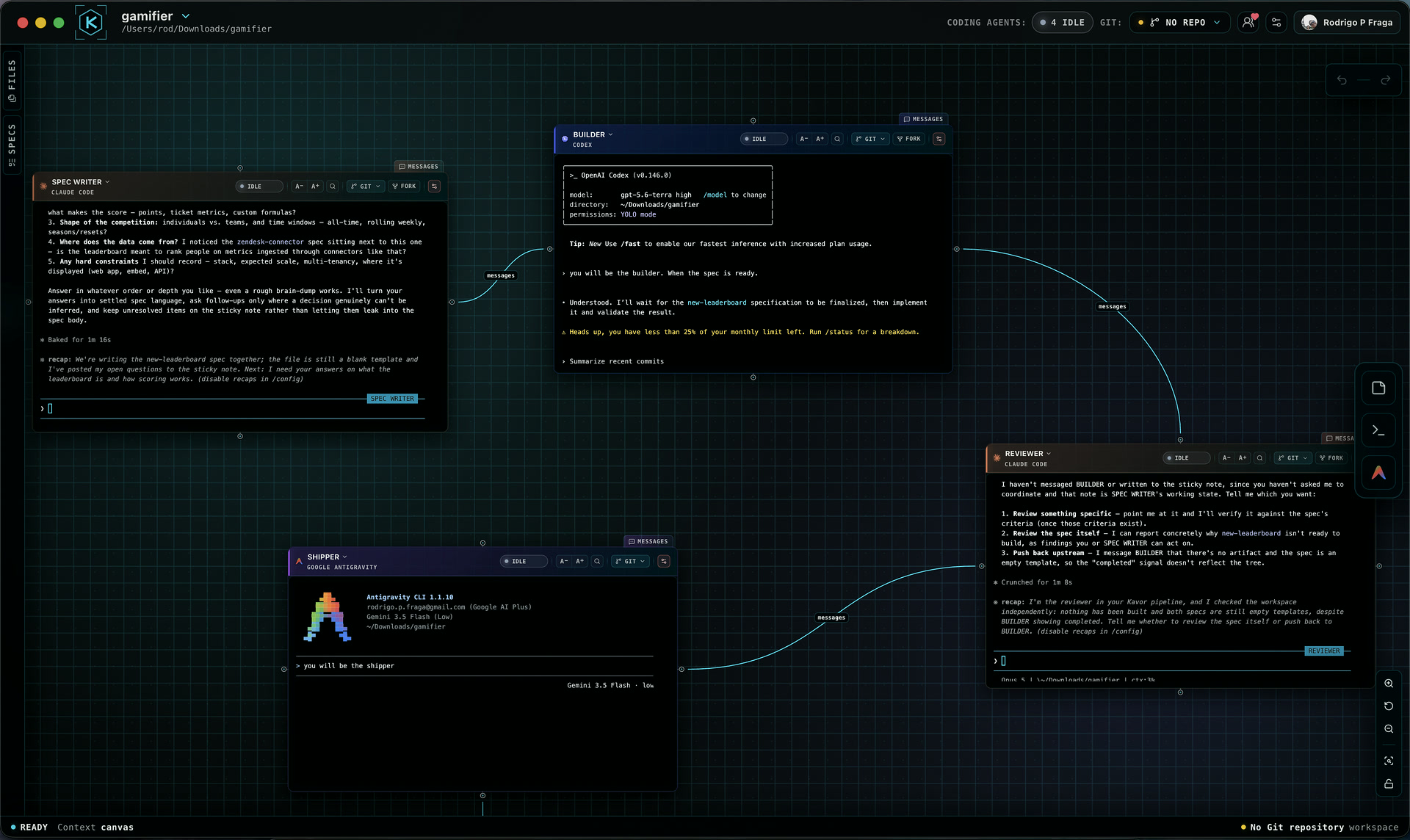
2:09Choose agents by role, not habit.
A useful multi-agent workflow begins with responsibilities, not provider names. This real session gives a Spec Writer, Builder, Reviewer and Shipper distinct jobs while their context and handoffs remain visible on the Canvas.
 0:20
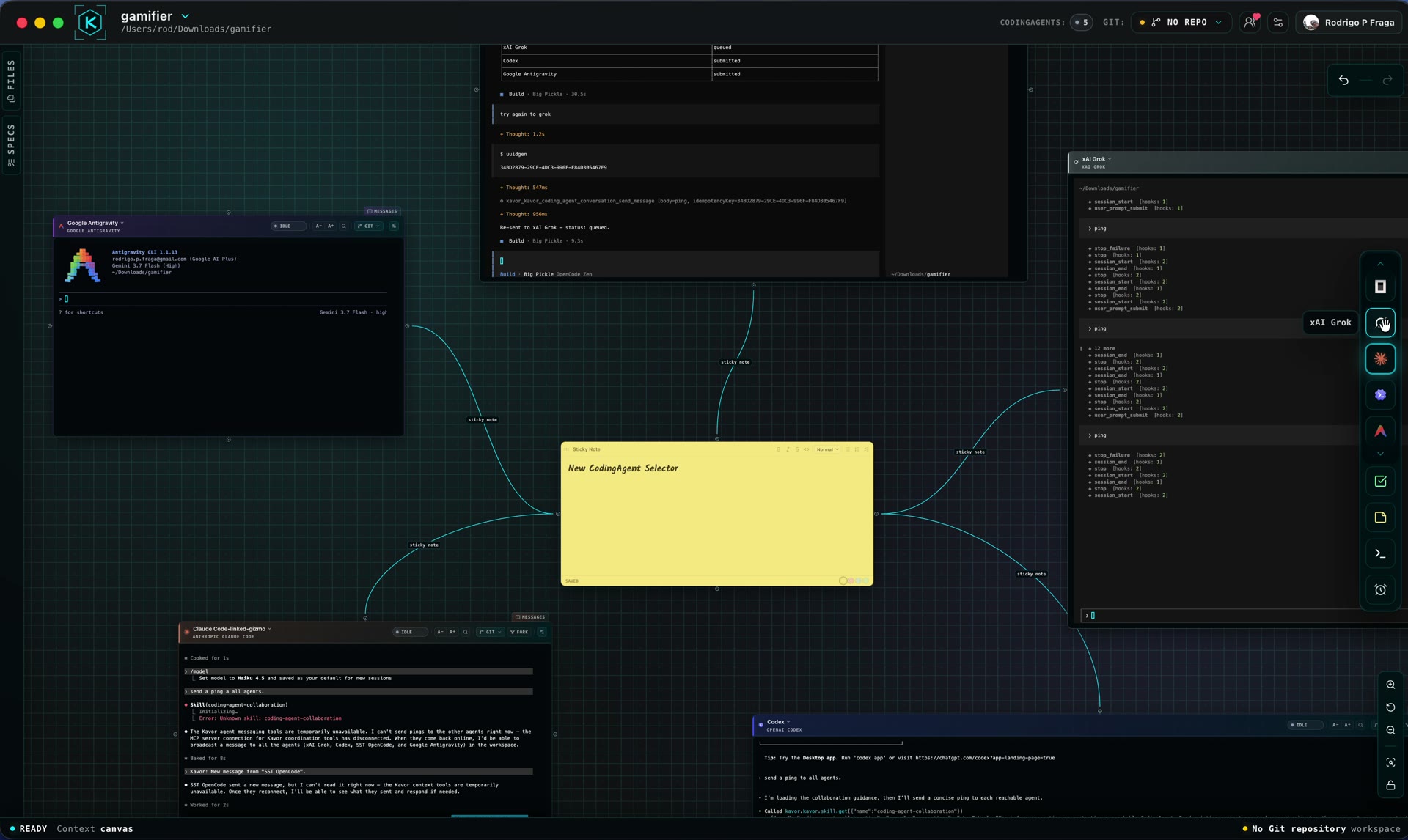
0:20Choose a provider and add a CodingAgent to the Canvas.
Every CodingAgent starts with a responsibility and a provider. The toolbar selector lets you choose the harness before placing the Node; the session preserves its native interface and can then connect to Specifications, Files, Sticky Notes, Terminals and other CodingAgents.
 0:22
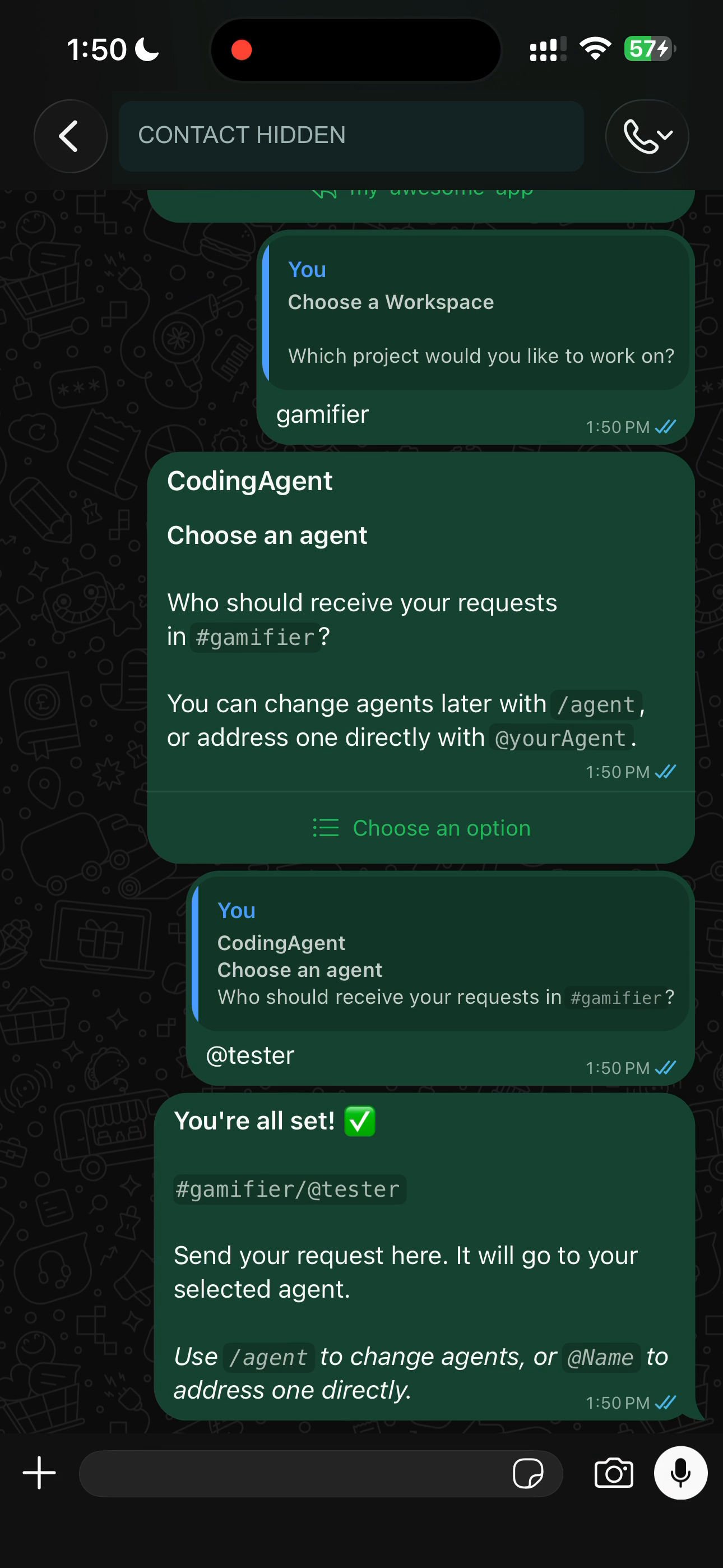
0:22Choose your Workspace and agent in WhatsApp.
Start in self-chat, choose a Workspace, then select the CodingAgent that should receive your requests. WhatsApp is a Channel for reaching Agent Kavor. Keep Kavor running on your computer.
 0:29
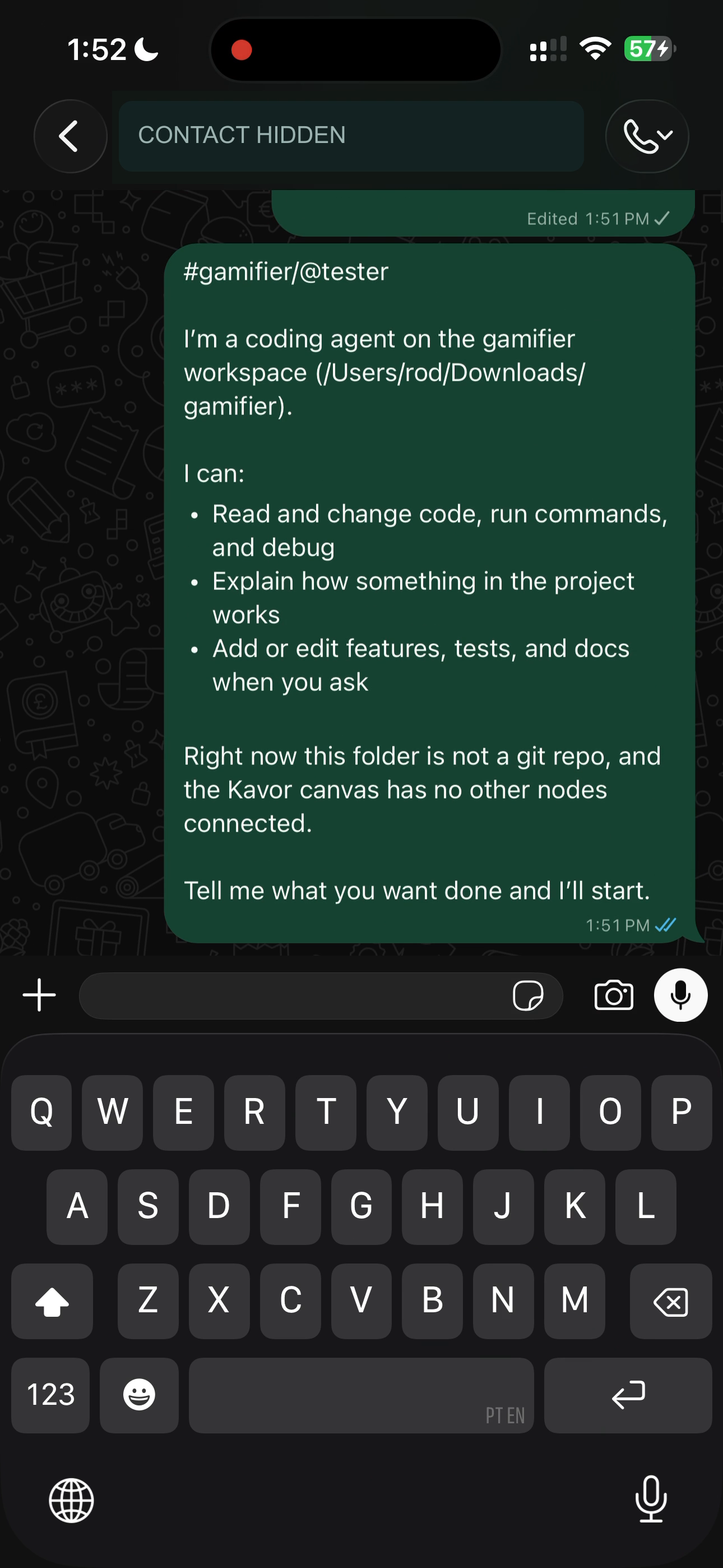
0:29Your agent can answer you in WhatsApp.
Send a question from WhatsApp and follow it through the queue, Working status and the selected CodingAgent’s answer. The recording keeps the Workspace and agent context visible; it does not show a code change.
 0:40
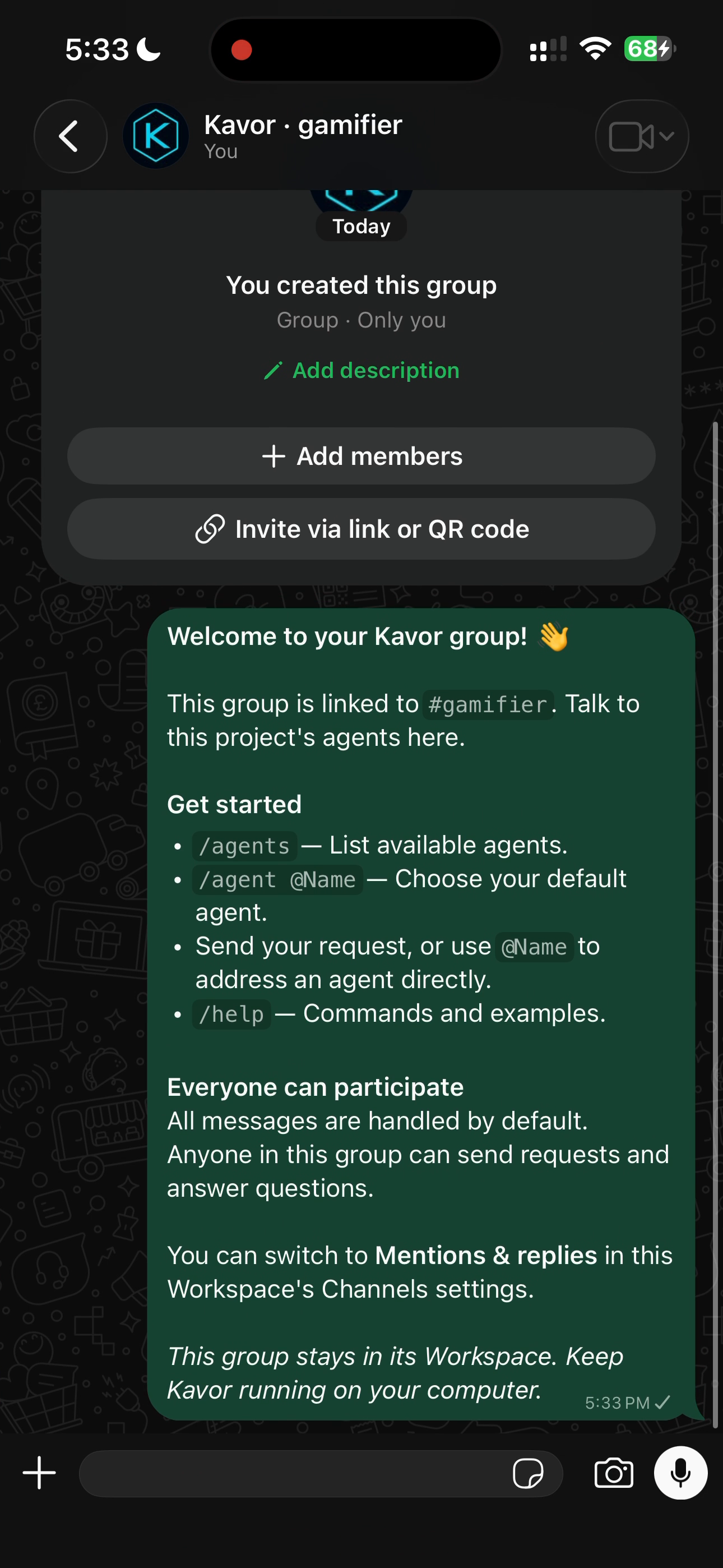
0:40One Workspace. Its own WhatsApp group.
Request a group from self-chat with /workspace /create-group, wait for confirmation, then open it. The group stays linked to its Workspace so the project’s conversations stay together. Keep Kavor running on your computer.