How to close your first loop in Kavor
The best first Canvas is not the most complete one. It is the smallest one that turns clear intent into a change you can review.
In this tutorial, Claude Code implements a Specification, Codex reviews the result, both preserve evidence in a Sticky Note, and you decide when the work is finished.
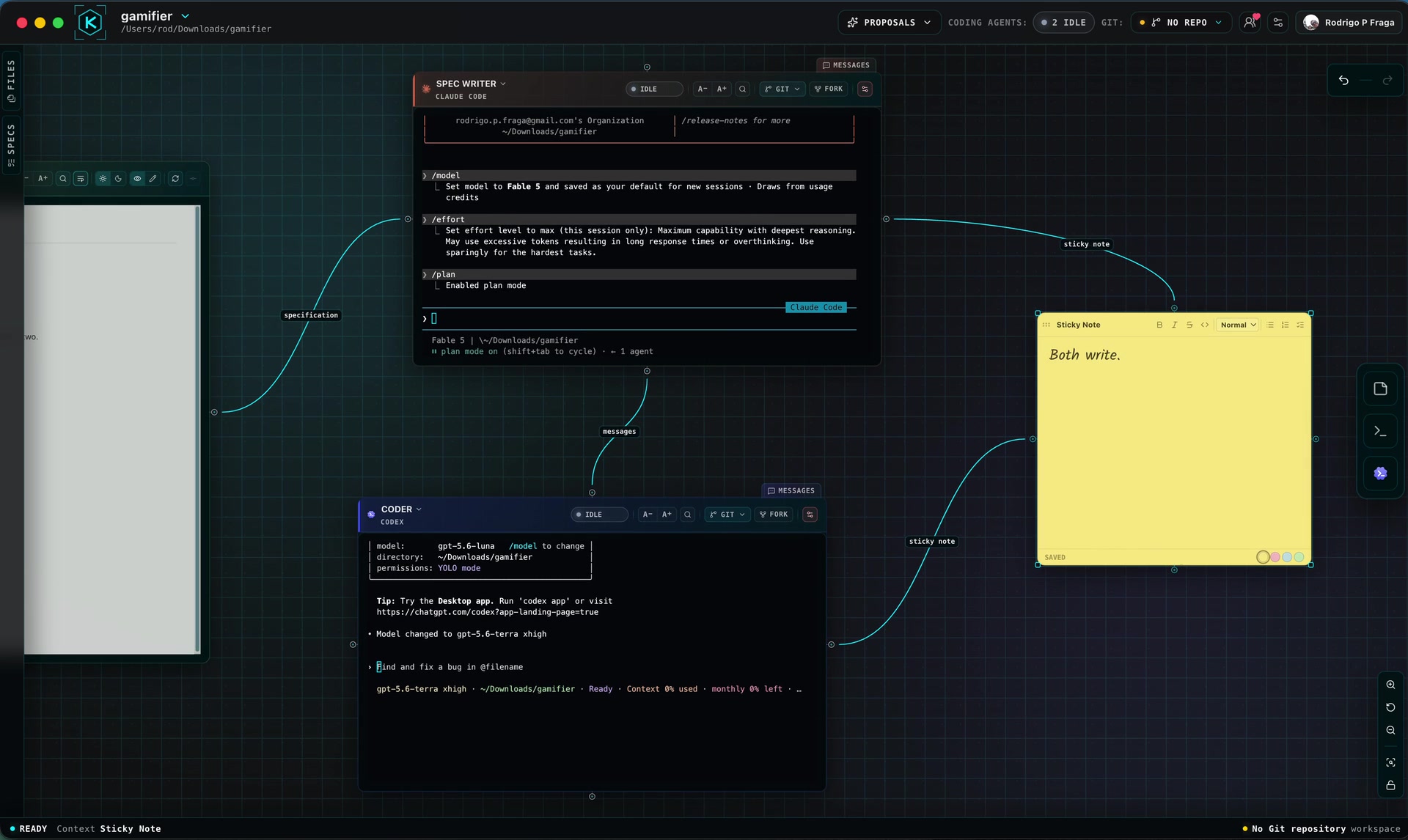
Watch the complete loop in 1 minute and 29 seconds → (opens in a new tab)
Before you begin
You need:
- Kavor with an open Workspace;
- Claude Code and Codex installed and authenticated;
- a small task with an observable result inside the Workspace directory.
A good first task fits in one sentence and has two or three objective criteria. For example: “Add form validation and keep the existing tests passing.” Avoid starting with a broad refactor.
The loop you will build
The work will follow this sequence:
Specification → Claude Code → message → Codex → human decision
The four Nodes will form one reachable component. A minimal topology connects the Specification to Claude Code, Claude Code to Codex, and Codex to the Sticky Note. Both CodingAgents can work with every reachable resource and message each other without every resource being directly adjacent to both.
Connections are not flow arrows. They are relationships between Nodes; the sequence above describes the work in this tutorial.
Prefer to build it with help?
Your favorite CodingAgent can also consult the official Kavor documentation, with no additional setup, to explain the
Canvas, answer questions, and help assemble the loop. When the current graph, Allow workspace editing, and permissions allow it, the
CodingAgent can also create Nodes and Connections with you.
You can start with this request:
Describe the small task in the CodingAgent. Enable Allow workspace editing to allow Canvas assembly; with the option off, request guidance only.
Consult the official Kavor documentation and help me assemble a first loop for this task. First, explain the
smallest structure and the required Connections. Then, if the current graph and `Allow workspace editing` allow it,
create the Specification, CodingAgents, and Sticky Note in one atomic change, connect them, and stop before
implementation starts so I can review the loop.
Expected result: The agent explains or assembles the authorized structure and stops for your review. Documentation and the prompt grant no access to Nodes outside the graph.
Documentation does not expand the CodingAgent's access, create implicit Connections, or allow Guardrails to be bypassed. If the documentation service is unavailable, Kavor's other local tools continue to work.
1. Create a small Specification
- Right-click an empty area of the Canvas and choose
Add Spec…. - Give it a direct name, such as
Fix form validation, and confirm. - Edit the Specification to record:
- the current problem;
- the expected result;
- what is out of scope;
- two or three verifiable acceptance criteria.
- Change the status from
DrafttoReadywhen the contract is ready for implementation.
A Specification is durable Markdown. It stays in the Workspace when a session ends and lets implementation, review, and the human decision start from the same contract.
2. Add the participants and shared memory
Right-click the Canvas and add:
Add Claude Code;Add Codex;Add Sticky Note.
Rename the CodingAgents if that makes their roles clearer, for example Implementer and Reviewer. Give the Sticky
Note a simple title such as Implementation and review notes.
Create these three Connections:
- Specification — Claude Code;
- Claude Code — Codex;
- Codex — Sticky Note.
Drag the circular handle from one Node to the circular handle on the other. For the first Connection of each type, read Kavor's confirmation before continuing. Do not add Guardrails to this first loop; use them later when you have a specific restriction to enforce.
These three Connections already place all four Nodes in one reachable graph. Add direct Connections when they make the intent clearer or need a pair-specific Guardrail, not merely to repeat access the graph already provides.
3. Ask for a verifiable delivery
Send this to Claude Code:
Send to Claude Code after preparing and connecting the four Nodes in this tutorial. If you renamed the participants, replace Codex with the Reviewer’s actual name.
Read the connected Specification and implement only that scope. Before changing code, confirm the acceptance
criteria. When finished, run the relevant checks, register durable outputs on the Specification, and add a summary
of changed files, checks run, and remaining risks to the Sticky Note. Then send a Kavor message to Codex,
referencing the Specification, and request a review against the acceptance criteria.
Expected result: Implementation leaves durable outputs and useful notes and requests review. Check delivery and the response in Messages; sending does not prove acceptance.
A Connection makes authorized context and capabilities available; it does not execute the task on its own. Follow the work in the CodingAgent and do not treat “done” as sufficient evidence.
4. Receive the review
When the message arrives, Codex can use the Specification and Sticky Note because both are in its reachable graph. Ask it to:
- compare the implementation with every acceptance criterion;
- run the relevant checks;
- record concrete findings, or state that it found no blockers;
- add the review result to the Sticky Note;
- reply to Claude Code when a correction is needed.
Open Messages on the Node to inspect delivery and replies. If there are findings, let Claude Code correct them and
request another review. That return path is part of the same loop.
5. Close the loop with a human decision
Before marking the work complete:
- reread the Specification criteria;
- inspect the outputs and produced changes;
- confirm that the Sticky Note contains the implementation and review summaries;
- resolve blocking findings;
- change the Specification status to
Done.
The status does not replace your decision. You can still accept the change, request a correction, reduce the scope, or discard it. The loop is closed when intent, execution, review, evidence, and acceptance remain visible in the Workspace.
Expected result
At the end:
- the Canvas shows who participated and what context was shared;
- the Specification preserves the contract and durable outputs;
- messages between CodingAgents remain inspectable;
- the Sticky Note gathers implementation and review observations;
- the final decision remains yours.
If something does not work
- The CodingAgent cannot find the Specification or Sticky Note: confirm a Connection path between the agent and resource. Referencing a Node in a message does not grant access by itself.
- The message does not arrive: confirm both CodingAgents belong to the same reachable component and open
Messagesto inspect delivery. They do not need a direct Connection; a busy provider may receive it later. - A Guardrail blocks the action: open the Connection and review the restriction; do not ask the CodingAgent to bypass it.
- Evidence is missing: ask the CodingAgent to register files, commits, or other durable outputs on the Specification and complete the Sticky Note.
Continue with How CodingAgents see and build the Canvas, browse the release notes, or share your first loop in the Kavor Community.