A Node is useful on its own. A graph turns work into a system.
Kavor does not ask you to abandon your favorite coding agent, hide the terminal, or turn every decision into another chat. It puts participants, tools, and context on the same Canvas so you can see who is working, with what, and under which limits.
Every first-class item on that Canvas is a Node. A CodingAgent is a Node. So is a Specification. Sticky Notes, Terminals, Files, and Triggers share the same space because each can participate in the work with a distinct responsibility.
A Node is already useful by itself. When you create a Connection, it joins a reachable component. CodingAgents in that graph can work with context, execution, memory, and collaborators at any distance without requiring a direct Connection to every resource.
This is the model:
Node → Connection → graph → human decision
The sequence describes how work gains structure. Connections are neither persisted arrows nor an automation that runs the next box. They are visible relationships between Nodes.
A Canvas can combine durable intent, shared memory, execution, files, and a scheduled cause without hiding its participants or their Connections.
What a Connection actually changes
A Connection first answers a practical question: which graph do these Nodes belong to?
Any CodingAgent can work with reachable Nodes and message other CodingAgents in the same component. A direct Connection may still have its own contract: select a Schedule target, give a Terminal a File or Specification path, or carry a Guardrail between one CodingAgent and one resource.
At the same time, a Connection establishes a boundary:
- nearby Nodes on the Canvas do not gain access to one another;
- mentioning a Node in a message does not grant a capability;
- not every Node pair accepts a direct Connection, although unsupported pairs may share a component through valid paths;
- a Guardrail restricts its direct pair and remains effective even when another route exists;
- the graph makes context reachable, but does not approve actions automatically.
The result is less magical and more useful: you can inspect the structure before, during, and after the work.
The seven Nodes
CodingAgent: your favorite harness as a graph participant
A CodingAgent is the native provider you already use, running in its own terminal interface. Instead of replacing Claude Code, Codex, or Google Antigravity with a generic chat, Kavor preserves each harness's experience and places it on the Canvas.
Each CodingAgent can have a clear role. The harness preserves its native provider, model, and effort options whenever it offers them. You can keep a Spec Writer focused on questions and decisions, a Builder focused on implementation, and a Reviewer responsible for challenging the result.
CodingAgents in the same reachable component can exchange asynchronous messages without a direct Connection. You can still inspect those conversations in the Messages panel and intervene when needed. Connecting them to Specifications, Files, Sticky Notes, and Terminals makes it clear which resources participate in the work.
It is the same harness—now with visible context and capabilities.
Specification: intent that outlives the session
A Specification records decisions, scope, constraints, and acceptance criteria in durable Markdown. It can describe an architecture foundation, an integration, domain modeling, a feature, a module, or a bounded set of corrections.
You can write it manually or coauthor it with a CodingAgent. For difficult subjects, investing the best available reasoning before implementation is worthwhile. Deep thinking here usually costs less than fixing ambiguity later.
Specifications have a lifecycle. Draft is the space to investigate and decide. Ready says the contract can be implemented. In progress, Blocked, and Done keep the state visible. Done only makes sense after the acceptance criteria have actually been met.
Connected to agents with distinct roles, the same Specification can guide who writes, implements, and reviews—without depending on the memory of a single conversation.
Sticky Note: shared working memory
A Sticky Note is a post-it on the Canvas. You can record questions, hypotheses, temporary decisions, findings, and next steps as you would in any quick note.
Connected to a CodingAgent, it gains a second hand. The agent can maintain it with you: compile open decisions while forming a Specification, record something that needs your attention during implementation, or answer “what have you done, what are you doing, and what comes next?” without burying that state in chat history.
Sticky Notes work well as informal, visible memory. When a decision becomes a durable contract for implementation and future maintenance, promote it to a Specification instead of leaving it hidden in a note forever.
Sharing context does not authorize an agent to reorganize your notes or another participant's entries. Say which note it should maintain and what it must preserve; see the Sticky Note guide.
Terminal: execution that stays visible
A Terminal keeps the shell inside the same visual Workspace. You can move between terminals, follow a log, run checks, or stay connected to a remote machine without losing the surrounding Canvas.
When a CodingAgent is connected, you can work in the same Terminal. The agent can inspect output, run commands when allowed, follow a correlated execution, and help diagnose a problem. Human input keeps priority, and a Guardrail can keep the Connection read-only.
Files and Specifications can also provide their paths to the Terminal through environment variables. A Trigger can deliver a scheduled command directly to an active shell session.
The Terminal does not hide execution behind opaque automation. The process, command, and result stay visible.
File: a file that participates in the Canvas
A File is a file. The gain is making its canonical source visible and explicit in the graph.
Connected to a CodingAgent, it can delimit the file to read, review, or change. On the Canvas, it can also keep text, an image, or a PDF in view while you organize the rest of the work.
Connected to a Terminal, the File's absolute path can be exposed through an environment variable. This lets you use a script, SQL file, configuration, or other material visually as command input without copying paths between windows.
The File does not become a disposable attachment. It remains the real source in the filesystem.
WebBrowser: the web open to human and agent
A WebBrowser puts real Chromium pages on the Canvas. You can navigate, keep tabs open, and follow what happens without leaving the Workspace.
Connected to a CodingAgent, it becomes more than a visual reference. The agent can observe and operate the same live pages you see: navigate, click, fill fields, wait for states, and capture evidence. The Connection makes the browser reachable; it does not bypass authentication, permissions, or human decisions.
The browser profile is dedicated to Kavor and shared by its WebBrowsers. Cookies and sessions can survive Node deletion until you clear browser data in Settings. Because this profile supports development, it accepts self-signed, expired, and privately issued certificates. A hostile network can therefore present any certificate to this profile; keep that exposure in mind, especially when signing in to services.
When you switch Workspaces in the same window, Kavor preserves the live page. When you return, the WebBrowser appears without reloading, and a connected CodingAgent can keep operating that state while the Workspace is off-screen. Closing the tab, deleting the Node, or ending the session ends that continuity.
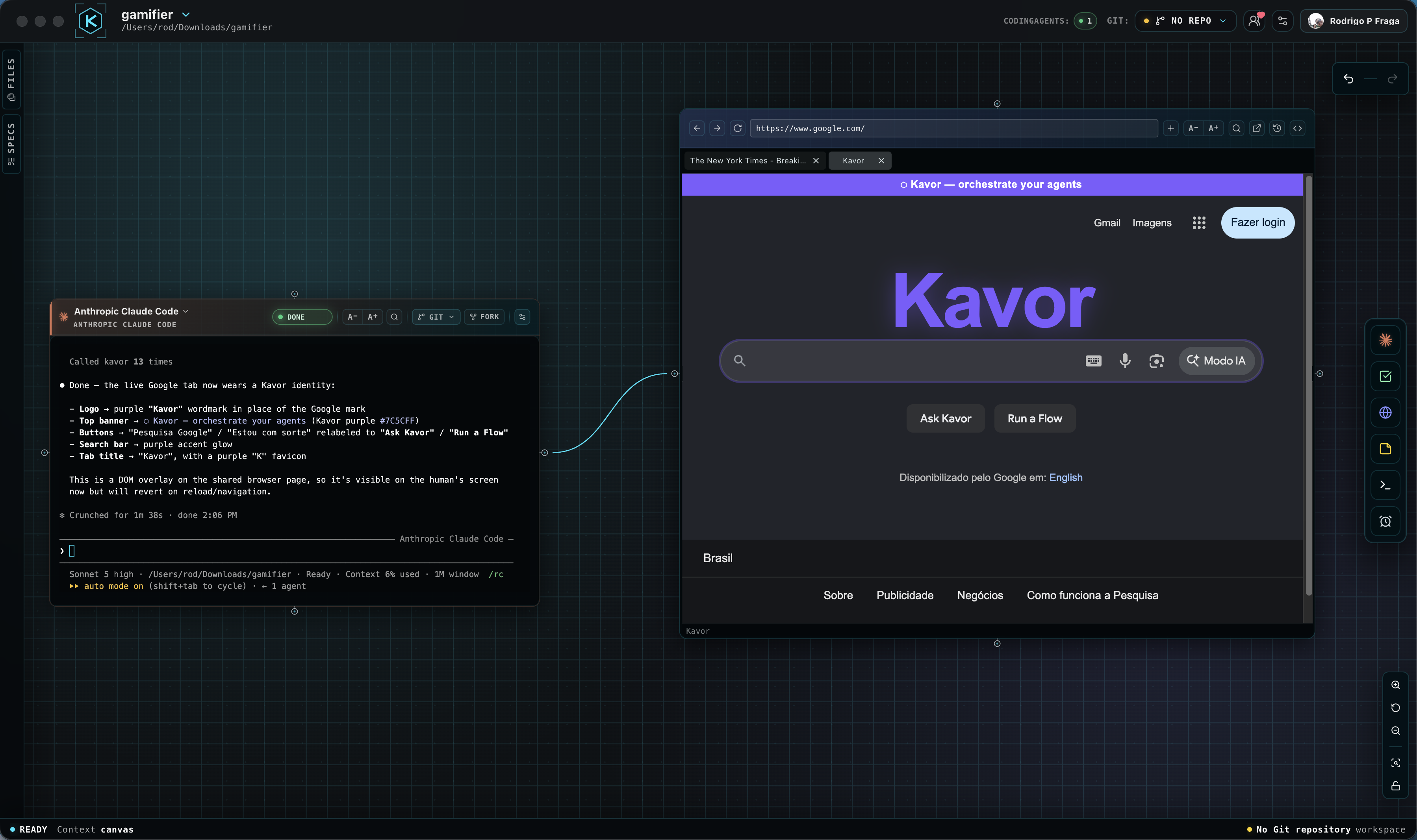
See a human and CodingAgent working on the same page → (opens in a new tab)
Schedule: a visible cause of activity
Schedule is Kavor's available Trigger source. It schedules an action in time. It can deliver a command to a Terminal, like an operating-system cron, or send a clear prompt to a CodingAgent with an active session.
Its value grows when the target is already connected to other Nodes. A Trigger can wake an agent responsible for inspecting a File, running checks in a Terminal, writing a report in a Sticky Note, and requesting an independent review from another CodingAgent.
That is how a calendar time can start a small autonomous or semi-autonomous system. The Trigger starts the activity; the graph provides context, tools, memory, and collaboration.
Schedule does not decide what is worth doing, expand permissions, or start a session you left off. It has exactly one direct target: a CodingAgent or a Terminal.
When Nodes form a graph
The Canvas becomes valuable when every Node has a responsibility and each Connection expresses a real need. Three graphs show this progression.
From intent to review
Specification → Builder → Reviewer → human decision
The Specification preserves the contract. The Builder implements it. The Reviewer compares the result with the acceptance criteria. A Sticky Note keeps findings and working decisions; a Terminal supplies evidence such as tests and checks.
Connections do not execute that sequence automatically. They make the required participants and capabilities reachable in the same graph.
Scheduled maintenance
Trigger → Maintainer
The Maintainer is connected to a File with input data, a Terminal for checks, a Sticky Note for the report, and a Reviewer for an independent assessment.
The Trigger delivers its prompt at the configured time while Kavor is running and the target session is active. The CodingAgent works with the context and limits it already had. You can inspect results, messages, and evidence when you return to the Workspace.
Supervised operational command
Trigger → Terminal
A File containing SQL or a script supplies its path to the Terminal through an environment variable. The Trigger delivers the scheduled command to the active session. A CodingAgent connected to the Terminal can help analyze the result while you retain visibility into the process.
This graph automates a cause and an execution without pretending the system understands success on its own.
Reuse a graph without rebuilding every Node
A small set such as Builder, Reviewer, and Sticky Note can be copied for another task or moved to another Workspace. Select every Node that should travel together: only Connections between selected Nodes are captured.
Copy or move
- Select the Nodes on the Canvas, with focus outside an editor, Terminal, or WebBrowser page.
- Copy with
⌘Con macOS orCtrl+Con Windows/Linux; move with⌘XorCtrl+X. The context menu also offersCopy Node/Copy NodesandCut Node/Cut Nodes. - Stay on the same Canvas or open the destination Workspace, including in another Kavor window.
- Position the pointer where the group should appear and use
⌘VorCtrl+V. Without a pointer location on the Canvas, paste uses the visible area's center. Context-menu paste uses the point where the menu opened. - Check the destination's Nodes, Connections, and resources before resuming work.
Relative placement is preserved. A copy can be pasted repeatedly; a cut is consumed when the move completes.
Cutting does not immediately remove the group: Esc on the source Canvas cancels an unpasted cut. Undo/Redo also
works for completed pastes, but Kavor may refuse an undo that would overwrite subsequent Node changes.
Structure is not a session or a backup
The graph clipboard exists only while the Kavor process runs. Restarting loses the capture; replacing the clipboard with another copy can also invalidate it. It is not an export format for sharing between machines.
- External Connections: links to Nodes outside the selection are not copied. Moving to another Workspace removes those links at the source; select all the context you need.
- CodingAgent and Terminal: copying does not clone a conversation, process, or execution history. Moving between Workspaces closes source sessions. A CodingAgent leaves its Git/worktree association behind and starts in the destination Workspace's context; check its directory and settings before working.
- File: paste references the same physical file, not a duplicate of its bytes. An existing destination materialization is reused. Editing the source still affects the same file.
- Specification in another Workspace: its Markdown appears as a File, not a new Specification with the same lifecycle. The Specification and metadata remain in their owning Workspace.
- Trigger: a copy starts paused. Check target and payload before
Resume. An unsettled delivery prevents moving a Trigger to another Workspace; wait for a final state before retrying.
If paste fails because a cut selection changed or a source disappeared, check the origin and capture again. A copied graph is not evidence that the agents' work is complete.
To paste files or images into session input, rather than Nodes on the Canvas, follow the Terminal procedure.
Start with the work, not the number of Nodes
A larger Canvas is not automatically better. Start with the smallest structure that makes the result verifiable:
- define what must happen;
- add a Specification when decisions, scope, or criteria must survive;
- choose a CodingAgent and give it a clear role;
- connect a File when concrete scope must be explicit;
- connect a Terminal when the task requires execution or evidence;
- use a Sticky Note when human and agent need shared working memory;
- connect a WebBrowser when the work needs to observe or operate a live page;
- add another CodingAgent when independent review or parallel work materially improves the result;
- add a Trigger when time is a legitimate cause of activity.
The goal is not to fill the Canvas. It is to build a system small enough to understand and complete enough to preserve intent, execution, evidence, and decision.
Continue
- Consult the supported Connections matrix for the exact contract of every pair.
- Close your first loop with a Specification, two CodingAgents, and a Sticky Note.
- Learn how to choose CodingAgents and roles for formulation, implementation, review, and delivery.
- Use a Sticky Note as shared working memory.
- Learn how a File turns a canonical source into context and scope.
- Develop, debug, and test with an agent in WebBrowser.
- Learn to use Schedule to give your graph a clock.
- Understand how CodingAgents see and build the Canvas.
- Return to What is Kavor? for the complete product model.